The Patient Viewer application is best used by your authorized staff to verify data quality and troubleshoot customer support issues.
You can use the Patient Viewer application to search for an individual patient (member) in your 1upHealth environment, and view all of the clinical and claims data for that patient. After you locate a patient, you can review your member's claims data that’s shared with third-party applications and verify the quality of the claims data.
The URL that you use to connect to Patient Viewer is https://{customer-name}.console.1up.health/patient-viewer. Replace {customer-name} with the value provided by 1upHealth. Ensure that you have contacted 1up and requested an account for yourself.
- Enter the patient's information in the First Name, Last Name, and Birth Date fields.
- Click Search.
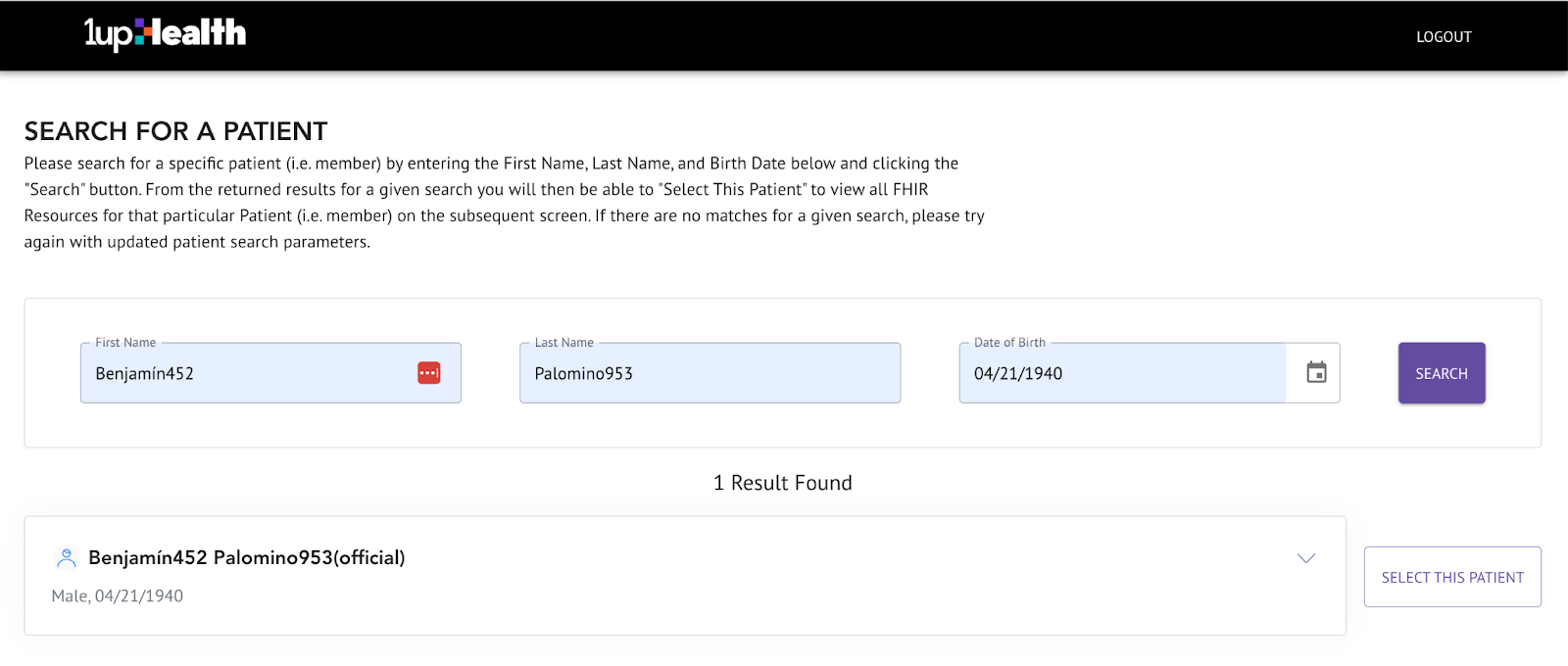
- Click Select This Patient to review the FHIR resources for that patient.
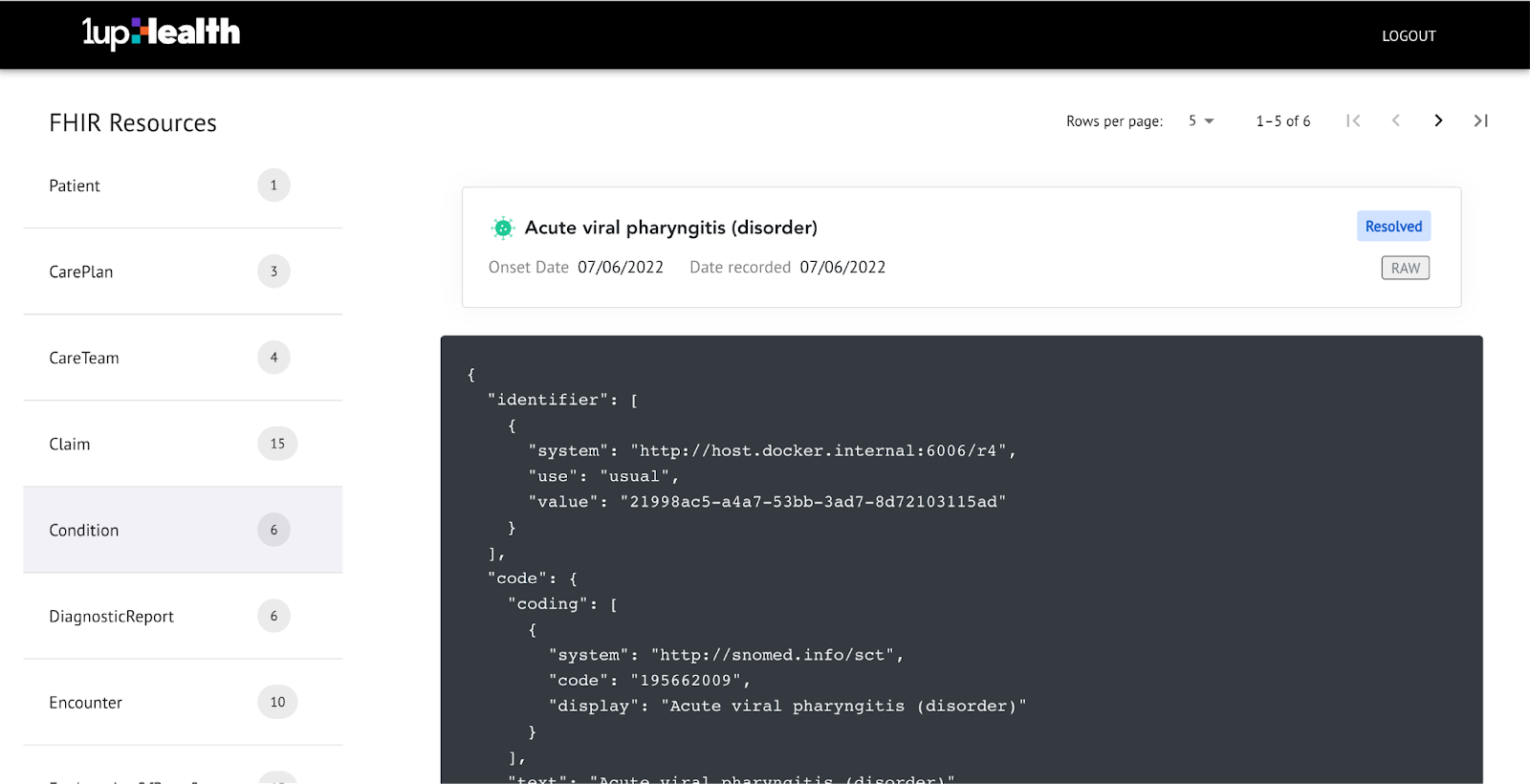
After you select a patient from the Patient Search results, you can review a list of FHIR resources for that patient and view the JSON output of an $everything operation.
- Select a resource from the FHIR Resources list.
- To see the raw JSON for the resource, click RAW.
- This JSON authorizes a third-party application to receive and render the member FHIR resources in their application.
You can enable your users to sign in to Patient Viewer using your existing Identity Provider (IdP). Patient Viewer support integrations with both OpenID Connect (OIDC) and Security Assertion Markup Language (SAML). Your users can authenticate using their existing credentials using providers such as Okta, Azure Active Directory, etc.
Patient Viewer supports assigning roles to each of the users you authorize for the application. You can also revoke access for users who no longer need it.
When users sign in for the first time, they don’t have an assigned role or any permissions set, and can’t access the Patient Viewer application or any data.
To grant access to new users, you can contact your 1up Client Partner and provide a list of users that can get access to Patient Viewer.
The user access list must include the following information for each user:
- First name
- Last name
- Company email address
- The customer environments the user can access
There are two methods for revoking user access to Patient Viewer: automatic and manual.
User access is automatically revoked for users who are removed from your Identity Provider (IdP). When users are removed from your IdP, their credentials aren’t available for authentication, and they can’t sign in to Patient Viewer.
If you need to revoke access to Patient Viewer for users that will remain in your IdP database, you can contact your 1up Client Partner to manually remove the user role assigned to those users.
Users are signed out and redirected to the Sign In page after the following amount of time:
- Maximum user session length is one hour.
- Inactivity timeout length is 15 minutes.
Each time a user signs in to Patient Viewer, immutable FHIR AuditEvent Resources are created and stored indefinitely. Audit events are logged for each FHIR API interaction between Patient Viewer and the FHIR server. Audit events include details about successful user sign in attempts, and successful patient searches. You can use a tool (such as Kibana) to review reports on aggregated metrics, such as the number of successful user sign in attempts and the number of successful patient searches over a given time period.