This page is intended for technical staff at external payer organizations (payers not partnered with 1upHealth).
Payer organizations that want to utilize 1up Payer to Payer Data Exchange must register on the 1up Dev Portal and complete the identity verification process. Once your organization is verified, you can generate client credentials and retrieve an authorization token. This token can be used to make requests to the Payer-to-Payer Data Exchange and bulk export member data from our partnered payer organizations.
See Payer network for a list of our partnered payer organizations.
In order to make a request to the Payer-to-Payer Data Exchange, an access token must be supplied that identifies your payer organization. This token is obtained through an OAuth 2.0 client credentials flow, enabled by 1up's Dev Portal.
Once you complete this procedure, 1upHealth will review the information provided to verify your organization. While your production access is pending, you can access the 1up sandbox and create clients to pull synthetic data. Once your requested production access has been granted, you will have access to create and manage production clients.
- Access the 1up Dev Portal login page.
- Register for the 1up Dev Portal, complete email verification, and login.
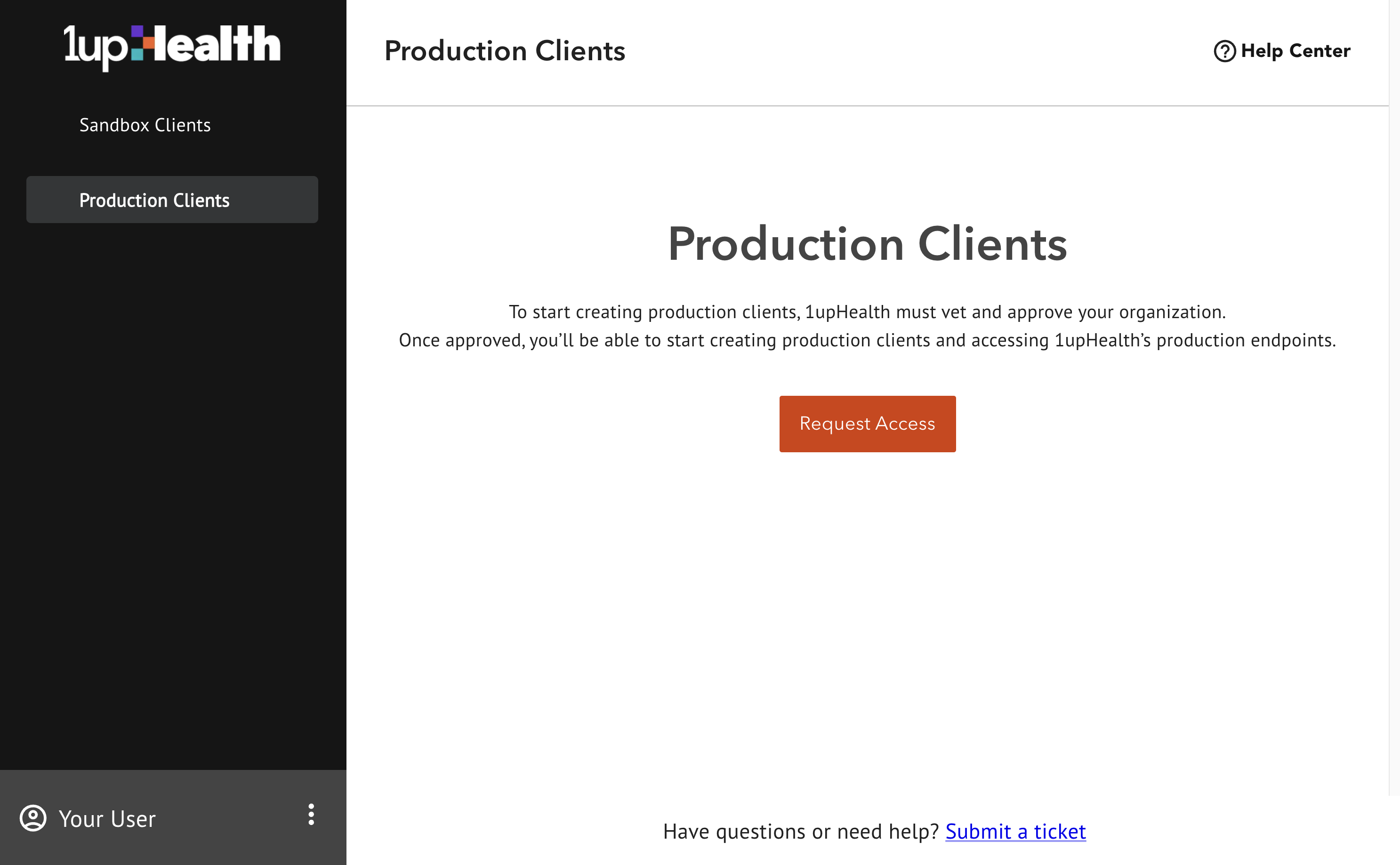
- From the Dev Portal home page, in the left hand sidebar, click Production Clients.
- On the Production Clients screen, click Request Access. To gain production access, you must submit a multi-stage production access form so 1up can validate your organization.
- Fill out the Requesting Production Access form:
- Select Payer under Organization Type. This requests access to the Payer claims data (CMS Payer-to-payer access) access type.
- Select a Federal Identity Type and enter the required information.
- Click Next and fill out the remaining information on the form which provides details for the vetting process used by 1up.
- Click Submit.
- Login to the 1up Dev Portal.
- From the Dev Portal home page, in the left hand sidebar, click Production Clients. The client creation screen is displayed.
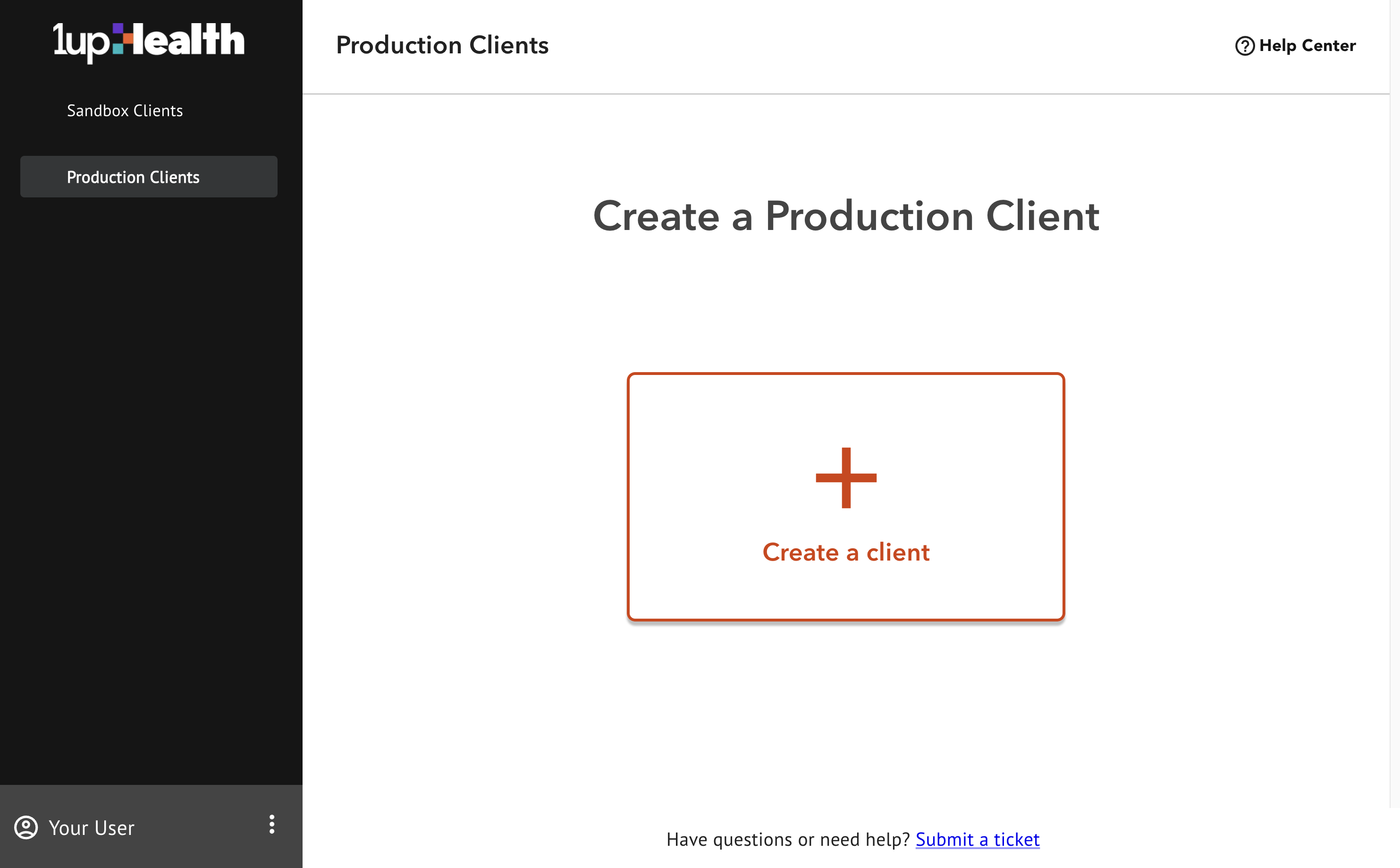
- Under Access Type, select Payer claims data (CMS Payer-to-payer access).
- Enter a Client Name and Description for your client.
- Click Create.
The production process is the same as the sandbox process, except you insert a real member's information in the request for their data.
Contact 1upHealth for a list of {tenant} values you can query.
Replace the {curly brackets} and any text inside them with the appropriate value.
Copy your production client ID and client secret.
Request an authorization token by pasting the following code into a terminal. Use the copied
client_idandclient_secretfor this request.curl -i -X POST \ https://gateway.1up.health/auth/realms/dev-portal/protocol/openid-connect/token \ -H 'Content-Type: application/x-www-form-urlencoded' \ -d 'client_id={your-id-here}' \ -d 'client_secret={your-secret-here}' \ -d grant_type=client_credentials \ -d 'scope=member-match|read'Copy the
access_tokenfrom the successful response. You will use this token for subsequent requests.Send a request for a specific member's data from a specific payer using the below request. The values listed in the request below are required, but additional data may be provided in the request.
Required fieldsMember match requests must contain exactly one each of the memberPatient, CoverageToMatch, and Consent parameters. The CoverageToLink parameter is optional.
Example $member-match requestcurl --location 'https://gateway.1up.health/v1/{tenant}/member-match/$member-match' \ --header 'Content-Type: application/json' \ --header 'Authorization: Bearer {token}' \ --data '{ "resourceType": "Parameters", "id": "member-match-in", "meta": { "profile": [ "https://hl7.org/fhir/us/davinci-hrex/StructureDefinition/hrex-parameters-member-match-in" ] }, "parameter": [ { "name": "MemberPatient", "resource": { "resourceType": "Patient", "id": "1", "name": [ { "given": ["{first-name}"], "family": "{last-name}" } ], "birthDate": "{YYYY-MM-DD}" } }, { "name" : "CoverageToMatch", "resource" : { "resourceType" : "Coverage", "id" : "2", "identifier" : [ { "type" : { "coding" : [ { "system" : "http://terminology.hl7.org/CodeSystem/v2-0203", "code" : "MB" } ] }, "system" : "http://example.org/old-payer", "value" : "{member-number-at-external-payer}" } ], "beneficiary" : { "reference" : "http://example.org/old-payer/Patient/1" }, "period" : { "start" : "{YYYY-MM-DD}", "end" : "{YYYY-MM-DD}" } } } , { "name": "Consent", "resource": { "resourceType": "Consent", "id": "{consent-id}", "status": "active", "policy": [ { "uri": "http://hl7.org/fhir/us/davinci-hrex/StructureDefinition-hrex-consent.html#regular" } ], "provision": { "type": "permit", "period": { "start": "{YYYY-MM-DD}", "end": "{YYYY-MM-DD}" } } } } ] }'Copy the groupId value from the successful response.
Send a request to bulk export the member's data using the
groupIdvalue.curl --location 'https://gateway.1up.health/v1/{tenant}/bulk-data/r4/Group/{groupId}/$export' \ --header 'Authorization: Bearer {access_token}'Copy the
job-idfrom the end of the text value in the successful response.{ "resourceType": "OperationOutcome", "id": "{operation-id}", "issue": [ { "severity": "information", "code": "informational", "details": { "text": "Asynchronous export running. Track job at https://gateway.1up.health/v1/{tenant}/bulk-data/r4/$export/job/{job-id}" } } ] }Send a request to check on the status of the bulk export and return the URLs necessary for receiving the member data.
curl --location 'https://gateway.1up.health/v1/{tenant}/bulk-data/r4/$export/job/{job-id}' \
--header 'Authorization: Bearer {access_token}'
Copy the url ending in
.ndjsonfor one of the batches. From the example below,https://gateway.1up.health/v1/bison/bulk-data/r4/$export/file/{batch-1-.ndjson-url}is one of the URLs out of 6 batches.{ "id": "{job-id}", "transactionTime": "YYYY-MM-DDTHH:mm:ss.SSSZ", "request": "https://gateway.1up.health/v1/{tenant}/bulk-data/r4/Group/cmk1cuald0005l701sdo7gs8c/$export", "requiresAccessToken": true, "status": "Successful", "resourceCount": 31, "batches": { "running": 0, "complete": 6, "failed": 0, "total": 6 }, "lastUpdated": "YYYY-MM-DDTHH:mm:ss.SSSZ", "output": [ { "type": "Specimen", "url": "https://gateway.1up.health/v1/{tenant}/bulk-data/r4/$export/file/{batch-1-.ndjson-url}" }, { "type": "Coverage", "url": "https://gateway.1up.health/v1/{tenant}/bulk-data/r4/$export/file/{batch-2-.ndjson-url}" }, { "type": "Patient", "url": "https://gateway.1up.health/v1/{tenant}/bulk-data/r4/$export/file/{batch-3-.ndjson-url}" }, { "type": "ExplanationOfBenefit", "url": "https://gateway.1up.health/v1/{tenant}/bulk-data/r4/$export/file/{batch-4-.ndjson-url}" }, { "type": "Encounter", "url": "https://gateway.1up.health/v1/{tenant}/bulk-data/r4/$export/file/{batch-5-.ndjson-url}" }, { "type": "Observation", "url": "https://gateway.1up.health/v1/{tenant}/bulk-data/r4/$export/file/{batch-6-.ndjson-url}" } ] }Send a request to receive the requested member data from one of the batches. The data is returned as Newline Delimited JSON (NDJSON).
curl --location 'https://gateway.1up.health/v1/{tenant}/bulk-data/r4/$export/file/{batch-1-.ndjson-url}' \
--header 'Authorization: Bearer {access_token}'
Send requests for each of the remaining batches.